Apple’s iOS ecosystem contains powerful utilities buried within complex menus that significantly improve device functionality, yet they often go unnoticed by the average user. While the technology giant regularly introduces major updates, many practical tools designed to solve common daily friction points—such as call clarity and eye strain—remain tucked away in accessibility settings. Experts note that mastering these obscured features can substantially upgrade how users interact with their devices.
Enhance Call Clarity with Voice Isolation
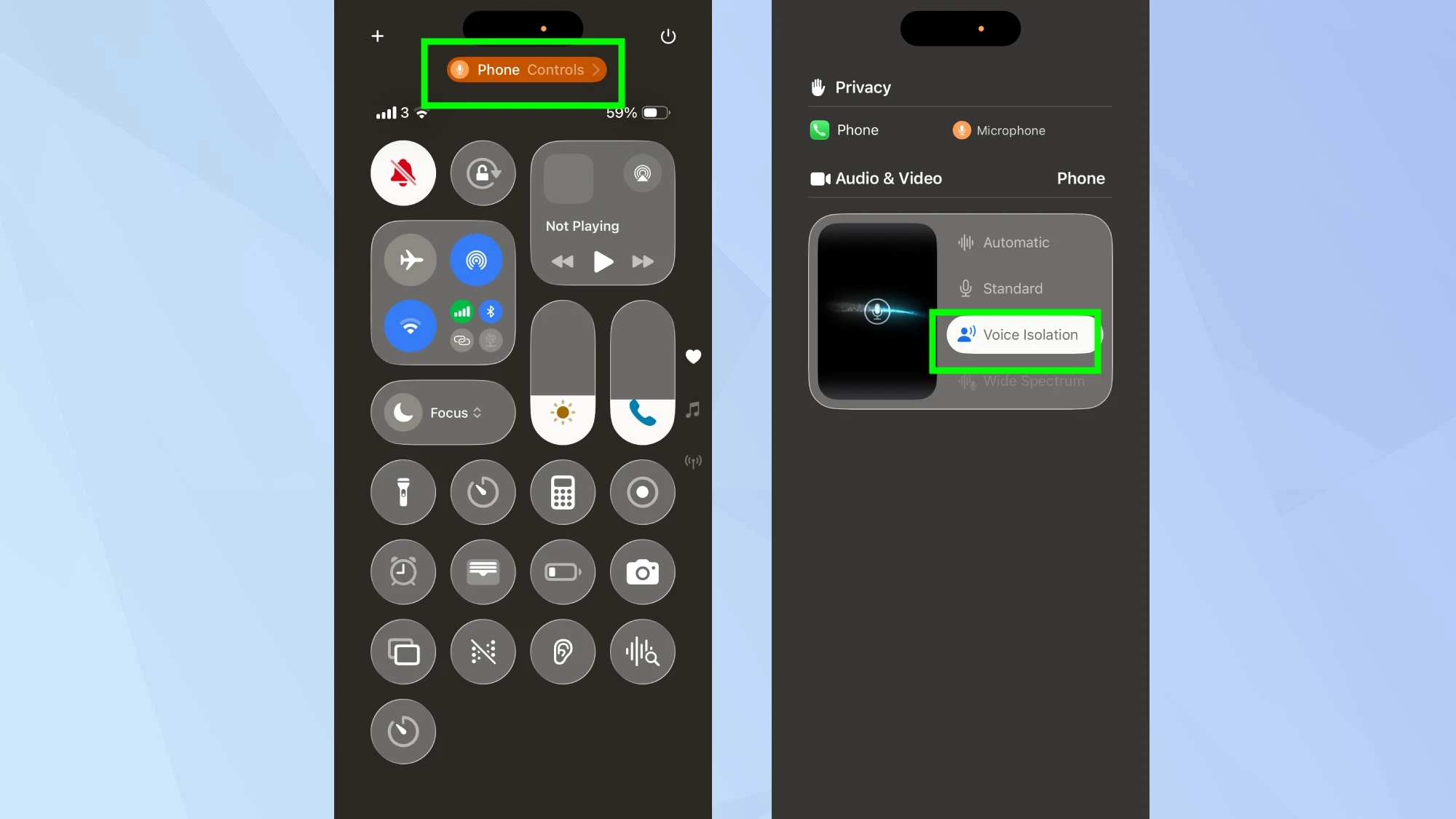

Standard phone calls often suffer when users are in noisy environments like busy streets or construction sites. Apple addresses this with a feature called Voice Isolation, which actively processes audio to prioritize the user’s voice while suppressing background frequencies.
To activate this, users must be on an active call. Opening the Control Center and selecting “Phone Controls” reveals the Voice Isolation option. Once enabled, the system filters out distractions efficiently. The menu also offers a “Wide Spectrum” mode, which does the opposite by amplifying ambient sound, a setting ideal for group calls on FaceTime.
Lower Screen Brightness for Night Use
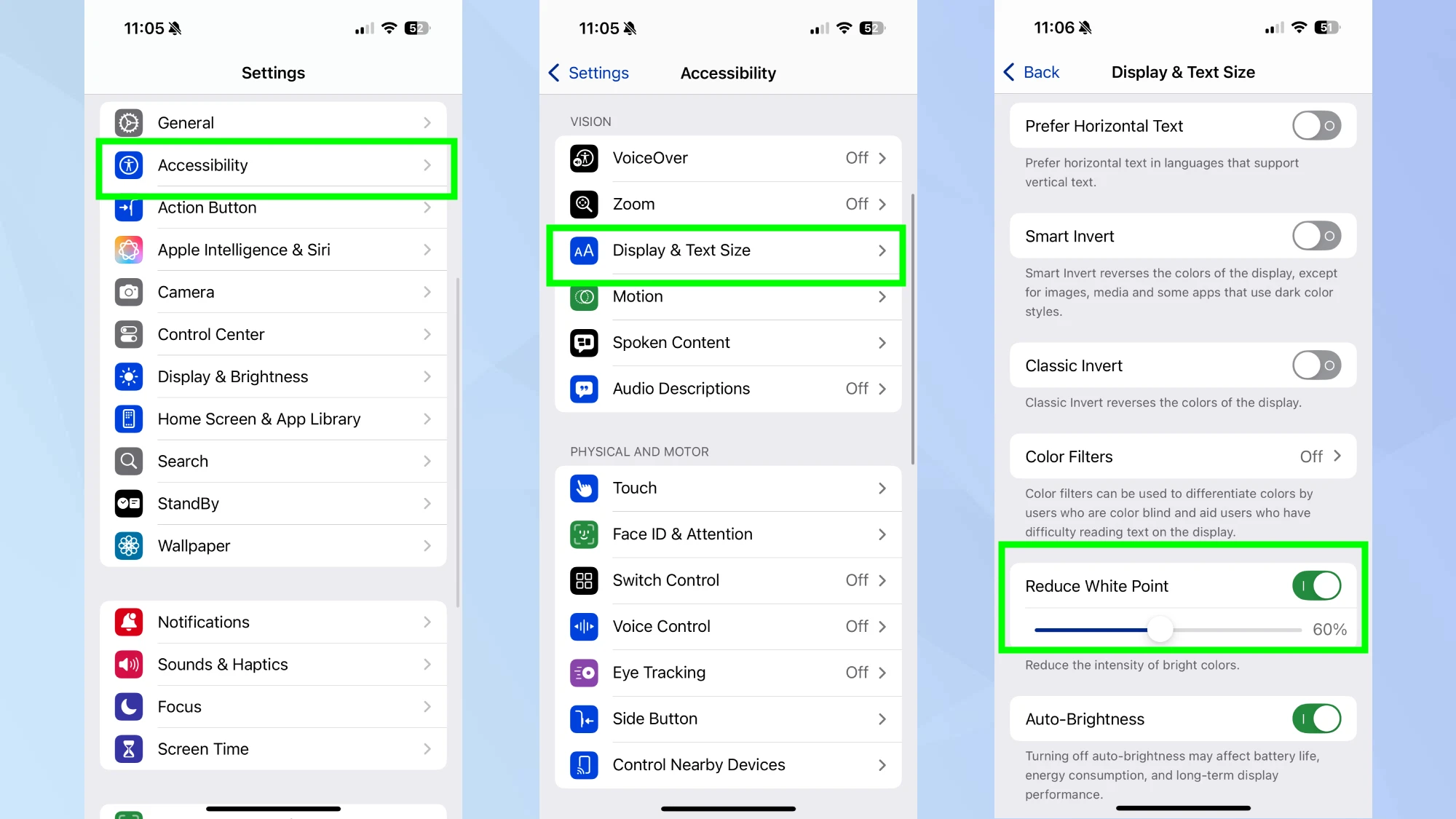
Many users find that the iPhone’s lowest standard brightness setting is still too harsh in completely dark rooms. To combat eye strain, iOS includes a “Reduce White Point” feature located within the Accessibility settings.
By navigating to Settings > Accessibility > Display & Text Size, users can toggle this function on and adjust the intensity via a slider. This reduces the glare of bright colors and whites, creating a much softer display than the standard brightness slider permits. For frequent use, this tool can be added to the Control Center shortcuts.
Precision Text Editing
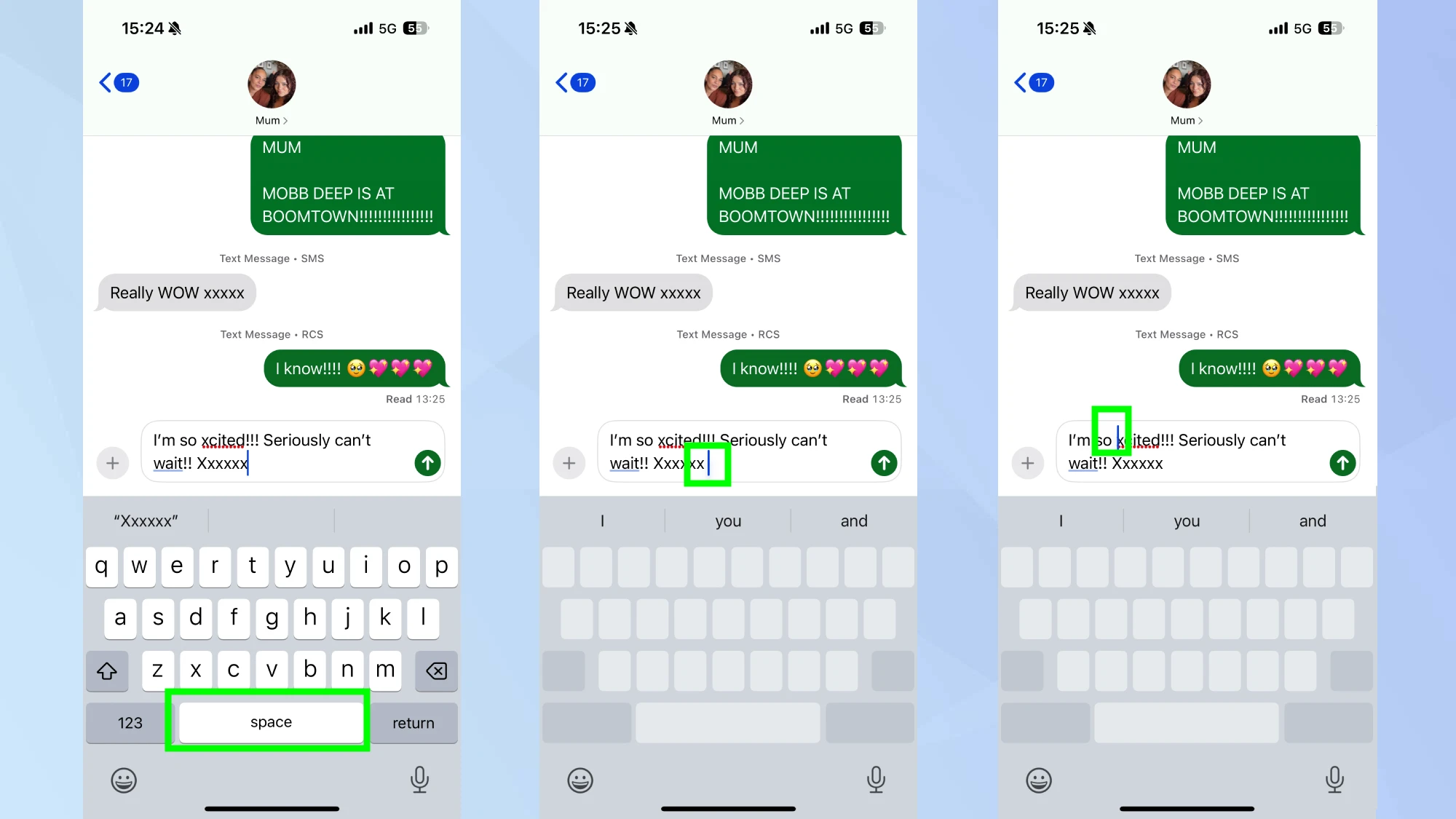
Editing typos on a touchscreen can be imprecise, but the iPhone keyboard includes a hidden trackpad mode. Rather than tapping the screen repeatedly to place a cursor, users can press and hold the space bar.
This action turns the keyboard area into a trackpad. Sliding a finger across the greyed-out keys moves the cursor smoothly and accurately through paragraphs. This method offers significantly more control than the traditional magnifying glass approach.
Native White Noise Generator
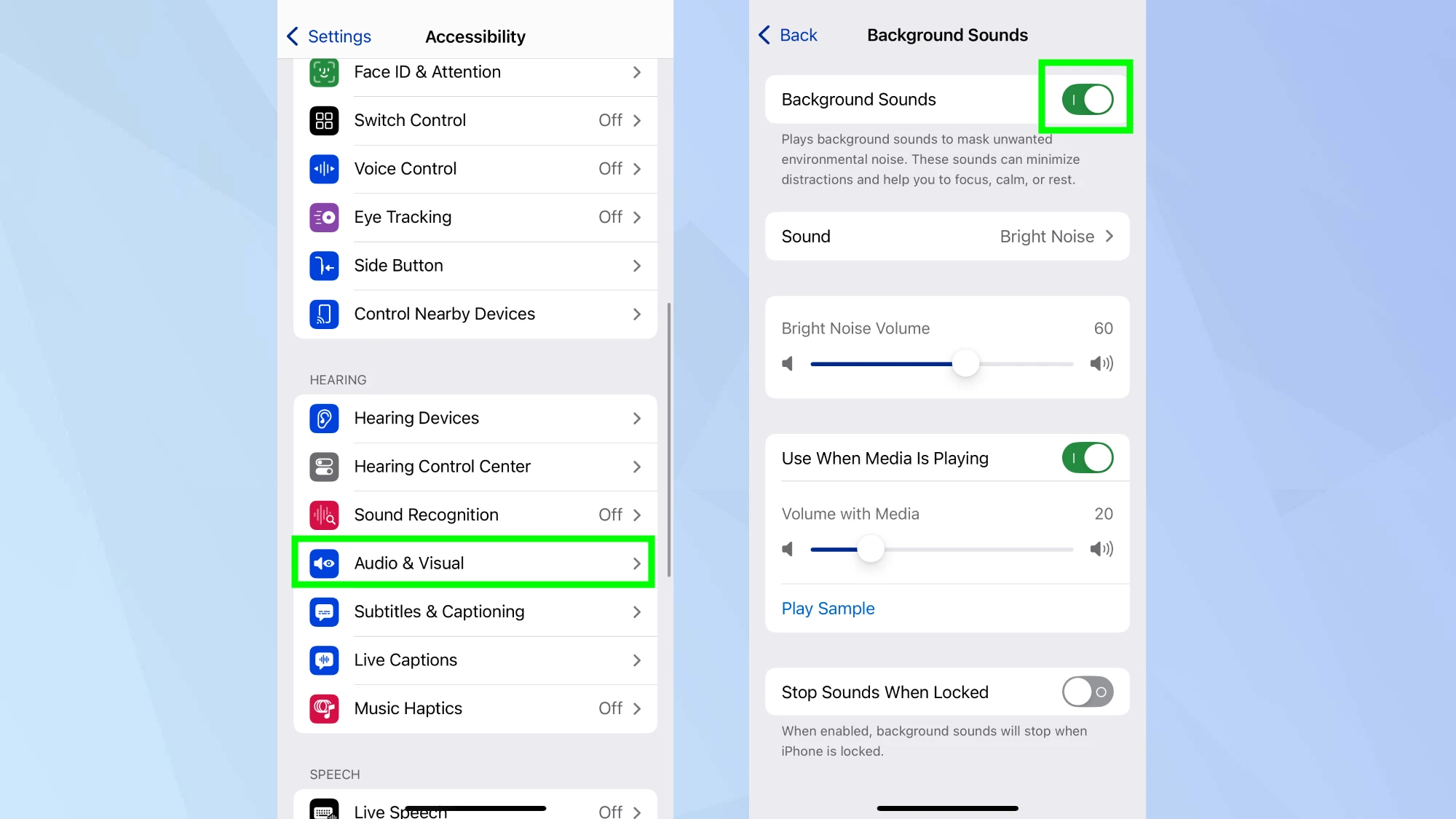
Users often download third-party applications for focus sounds or sleep aids, unaware that iOS has a built-in sound machine. The “Background Sounds” feature provides continuous audio loops, including ocean waves, rain, and white noise.
Located under Settings > Accessibility > Audio & Visual, this tool can run simultaneously with other media or when the phone is locked. It serves as an effective tool for masking distracting environmental noises or soothing infants without requiring an internet connection or extra subscriptions.
Schedule Messages for Later
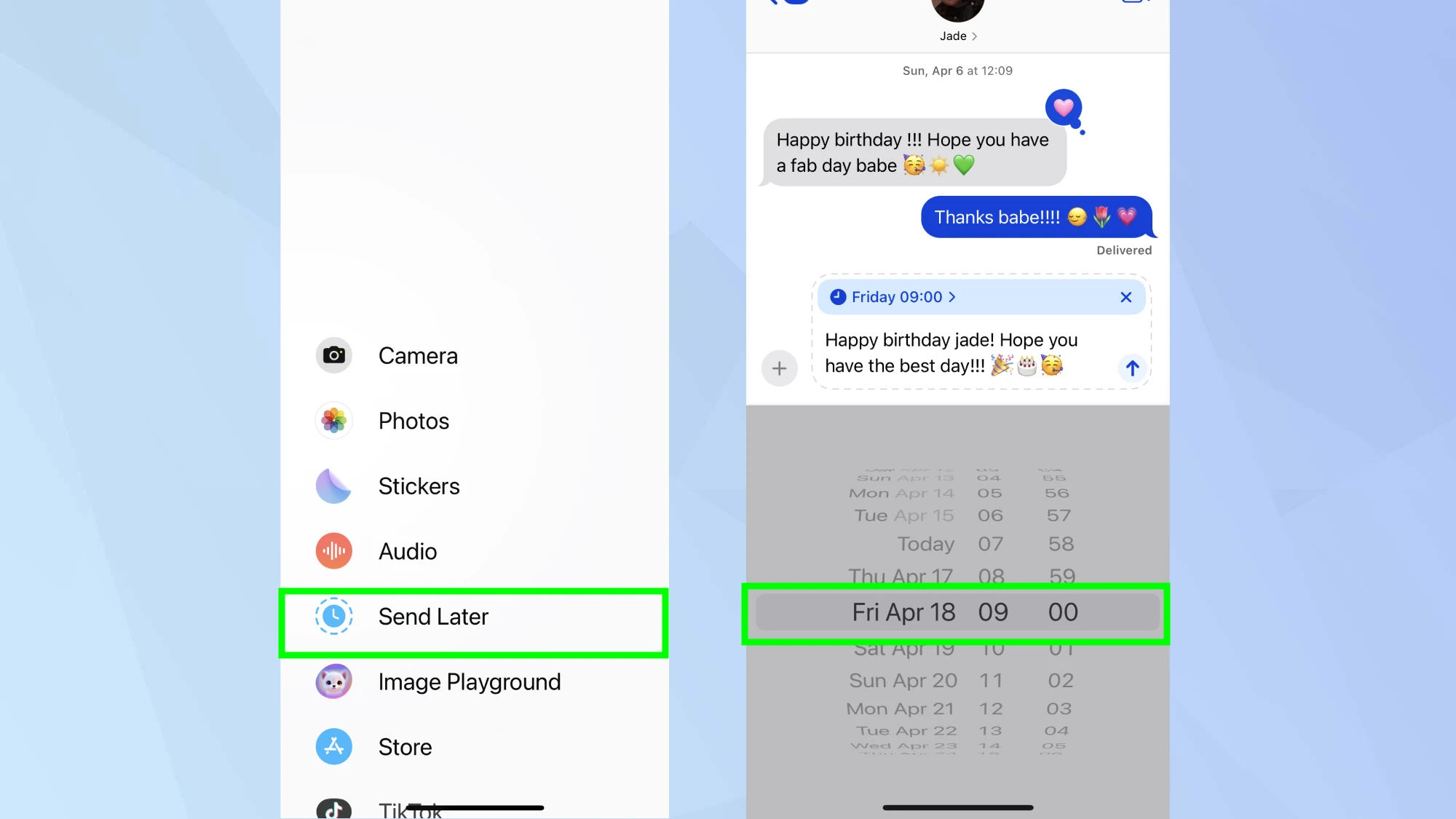
In a recent update, Apple integrated the ability to schedule texts directly within the Messages app, preventing the need to send notifications at inappropriate hours. This feature allows users to compose a message now and designate a specific delivery time in the future.
To use this, type a message and tap the “plus” icon next to the text field, then select “Send Later.” This function is particularly useful for birthday wishes, timely reminders, or communicating across different time zones without disturbing the recipient during their sleep.