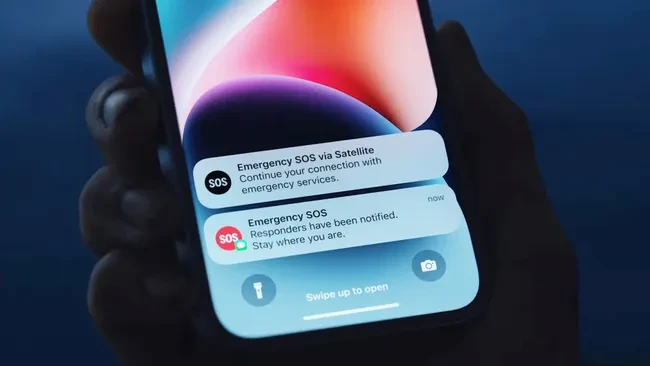
In an unpredictable world, your smartphone is often your most critical survival tool. Apple has integrated several advanced safety features into the iPhone—some automated and others manual—that provide first responders with vital information and ensure you can call for help even without a cellular signal. By taking five minutes to configure these settings now, you can significantly improve your safety during an unexpected medical crisis or accident.
1. Configure Your Digital Medical ID
-

-
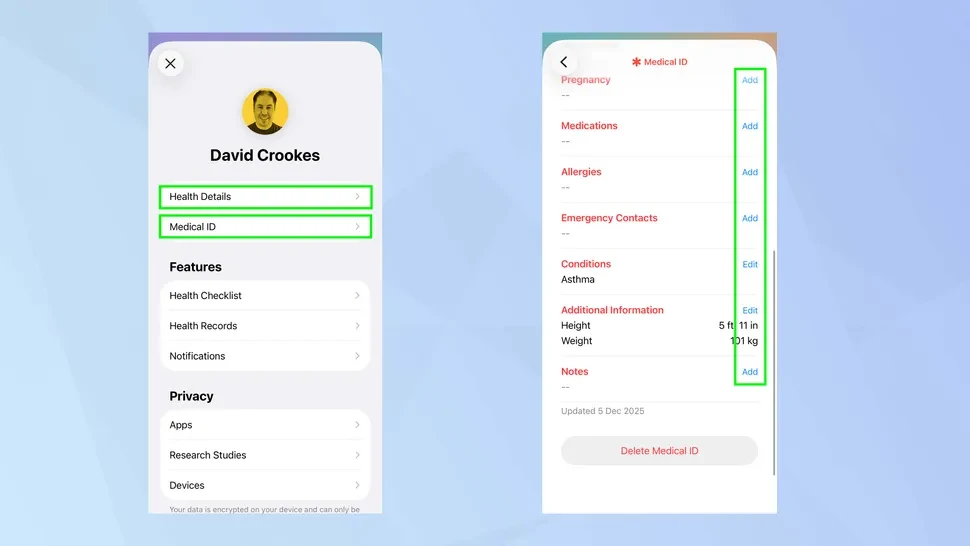
The Health app acts as a digital medical bracelet. By filling out your Medical ID, you provide first responders with critical data like medications, allergies, and your blood type.
- How to set up: Open the Health app, tap your profile icon, and select Medical ID.
- Crucial Step: Enable Show When Locked and Share During Emergency Call so your data is accessible to responders even if you are unconscious.
2. Master the Emergency SOS Shortcuts
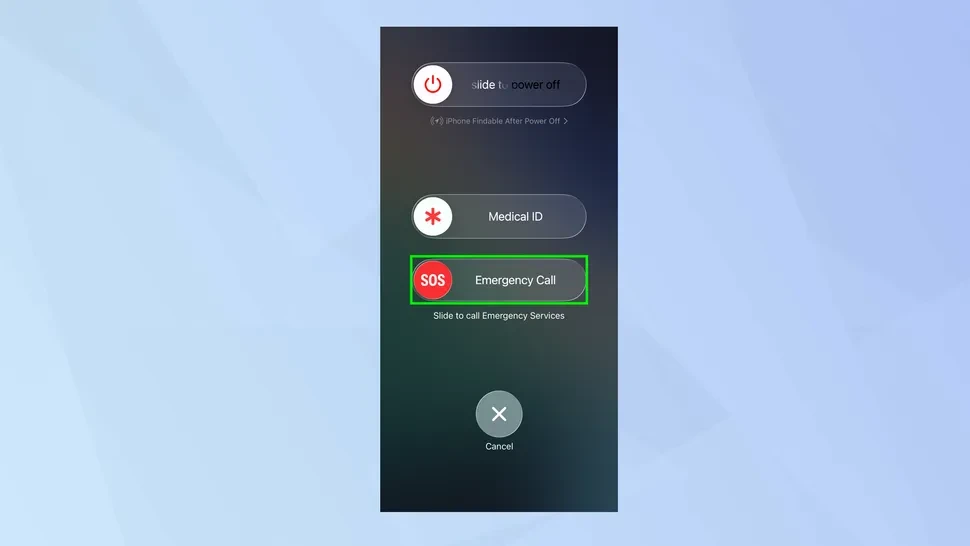
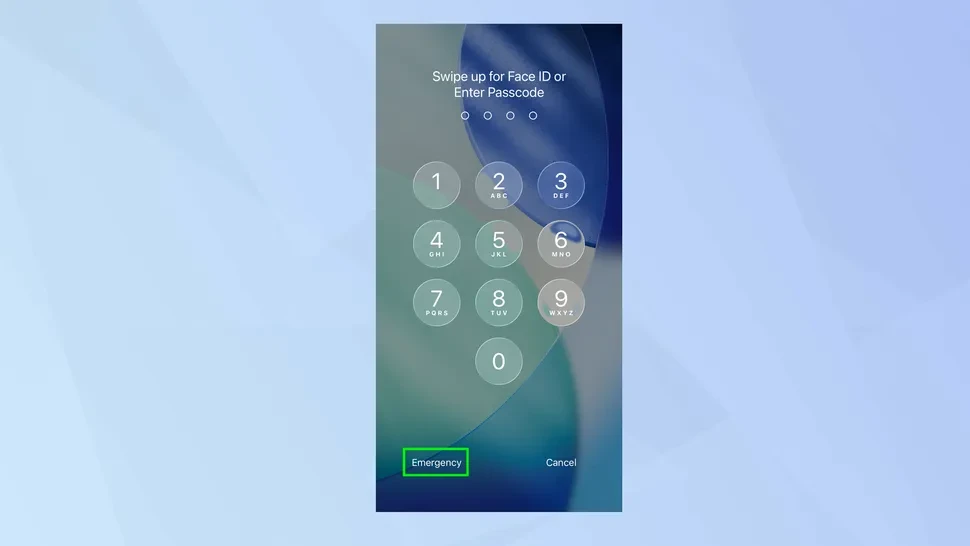
You can initiate an emergency call without even looking at your screen. Simultaneously press and hold the Side button and either Volume button until the Emergency SOS slider appears. You can also enable a shortcut to call services by rapidly pressing the Side button five times.
3. Utilize Satellite Connectivity
If you are hiking or traveling in remote areas, your iPhone 14 or later can connect directly to satellites. In the Find My app, tap the Me tab and select Send My Location under the “My Location via Satellite” section to update your position for friends and family without a cellular signal.
4. Activate Discreet “Quiet” Calling
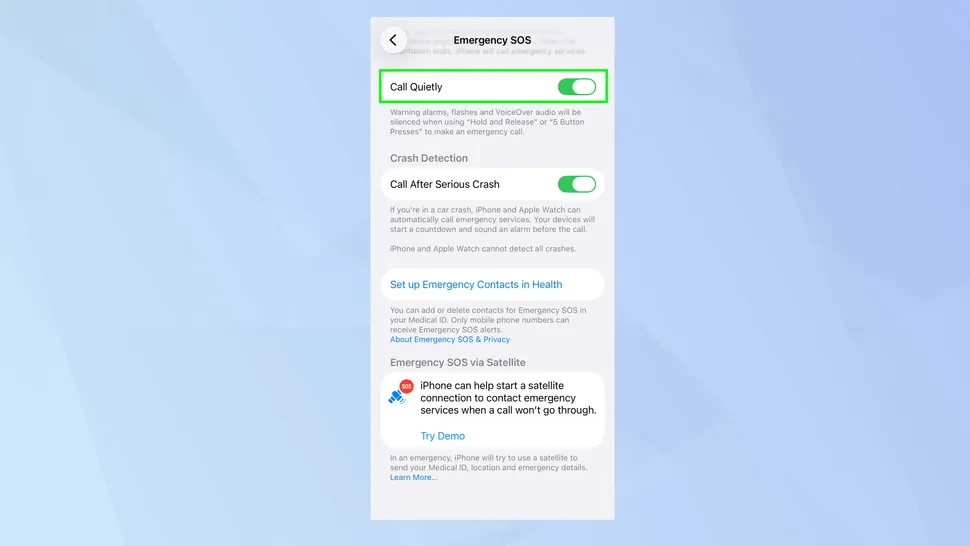
In situations where a loud alarm or a flashing light might put you in danger, you can disable the iPhone’s natural SOS warning signs. Navigate to Settings > Emergency SOS and toggle on Call Quietly to ensure the device remains silent during the emergency countdown.
5. Enable Automatic Crash Detection
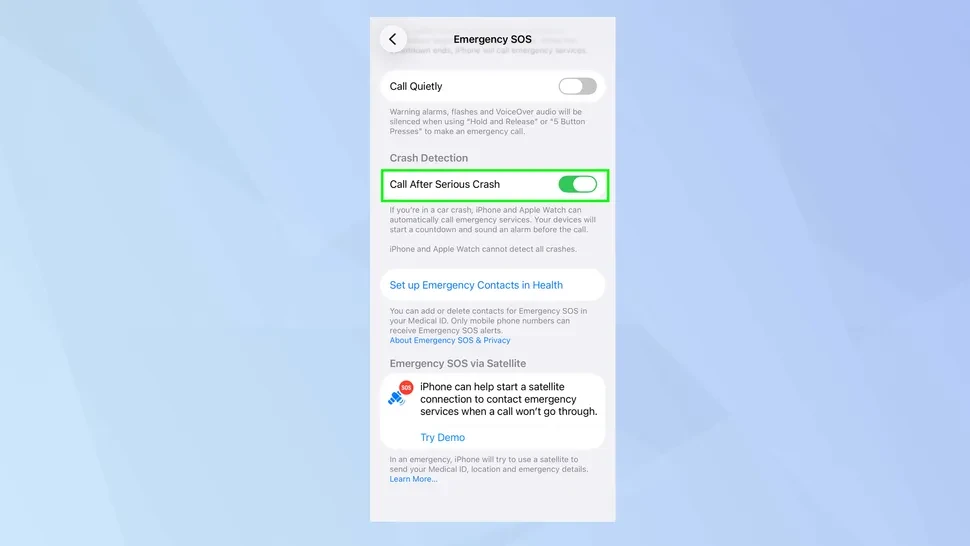
Using high-g force sensors, the iPhone can identify if you have been in a severe vehicle accident. Navigate to Settings > Emergency SOS and ensure Call After Serious Crash is toggled on. If you are unresponsive after a detected collision, the device will automatically notify emergency services.
6. Share Real-Time Location via Find My
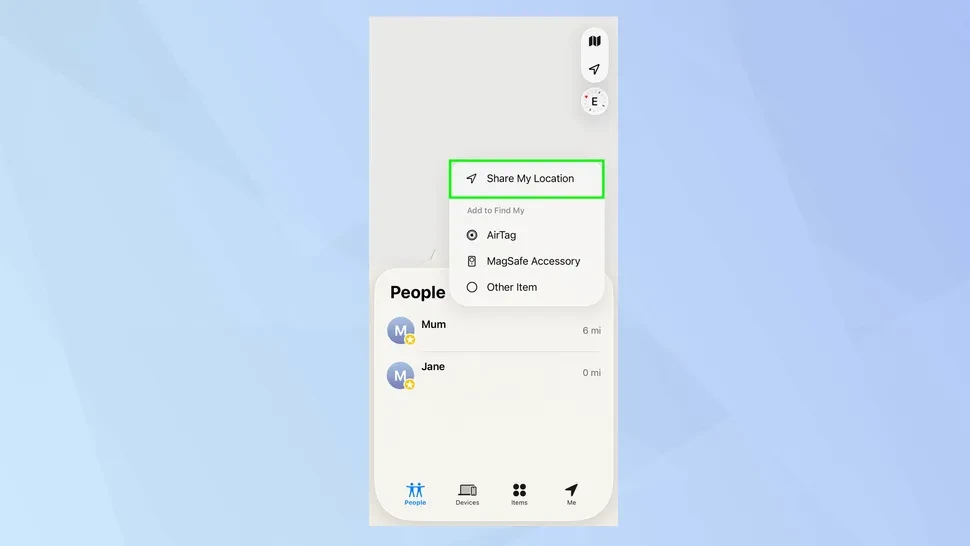
Ensure your inner circle knows your whereabouts during solo travels. In the Find My app, go to the People tab, tap the + icon, and select Share My Location. You can choose to share your live location indefinitely with trusted contacts.
7. Turn On Critical Government Alerts
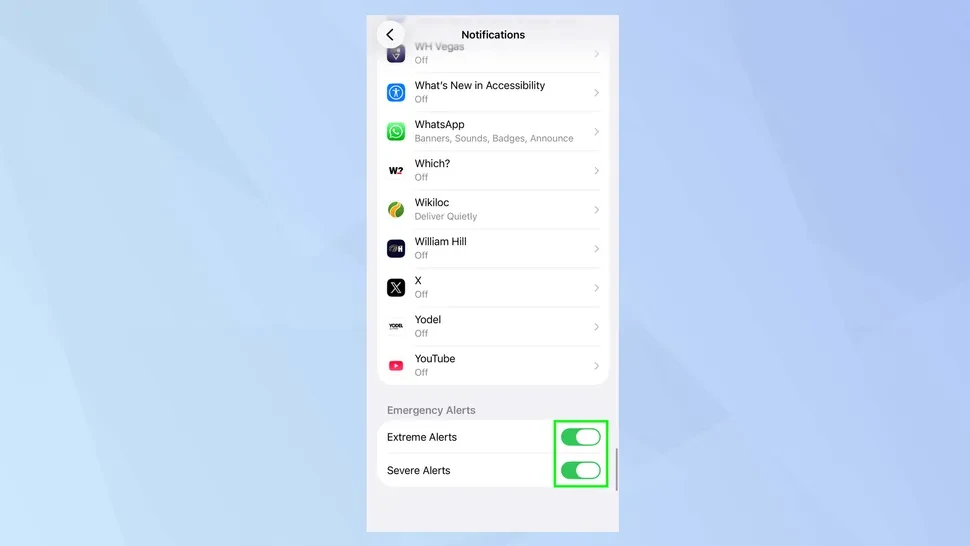
Stay ahead of natural disasters by enabling high-priority notifications. Go to Settings > Notifications, scroll to the bottom under “Government Alerts,” and toggle on Extreme Alerts and Public Safety Messages. These alerts are designed to bypass “Do Not Disturb” modes.