Apple’s iOS interface includes several powerful gesture controls designed to rectify typing errors and accidental deletions immediately. While many users rely on the backspace key to correct mistakes, the iPhone operating system offers specific motion and touch-based commands that allow for instant text recovery and action reversal. These features function system-wide, offering efficient solutions for everything from archived emails to misspelled text messages.
The ‘Shake to Undo’ Feature
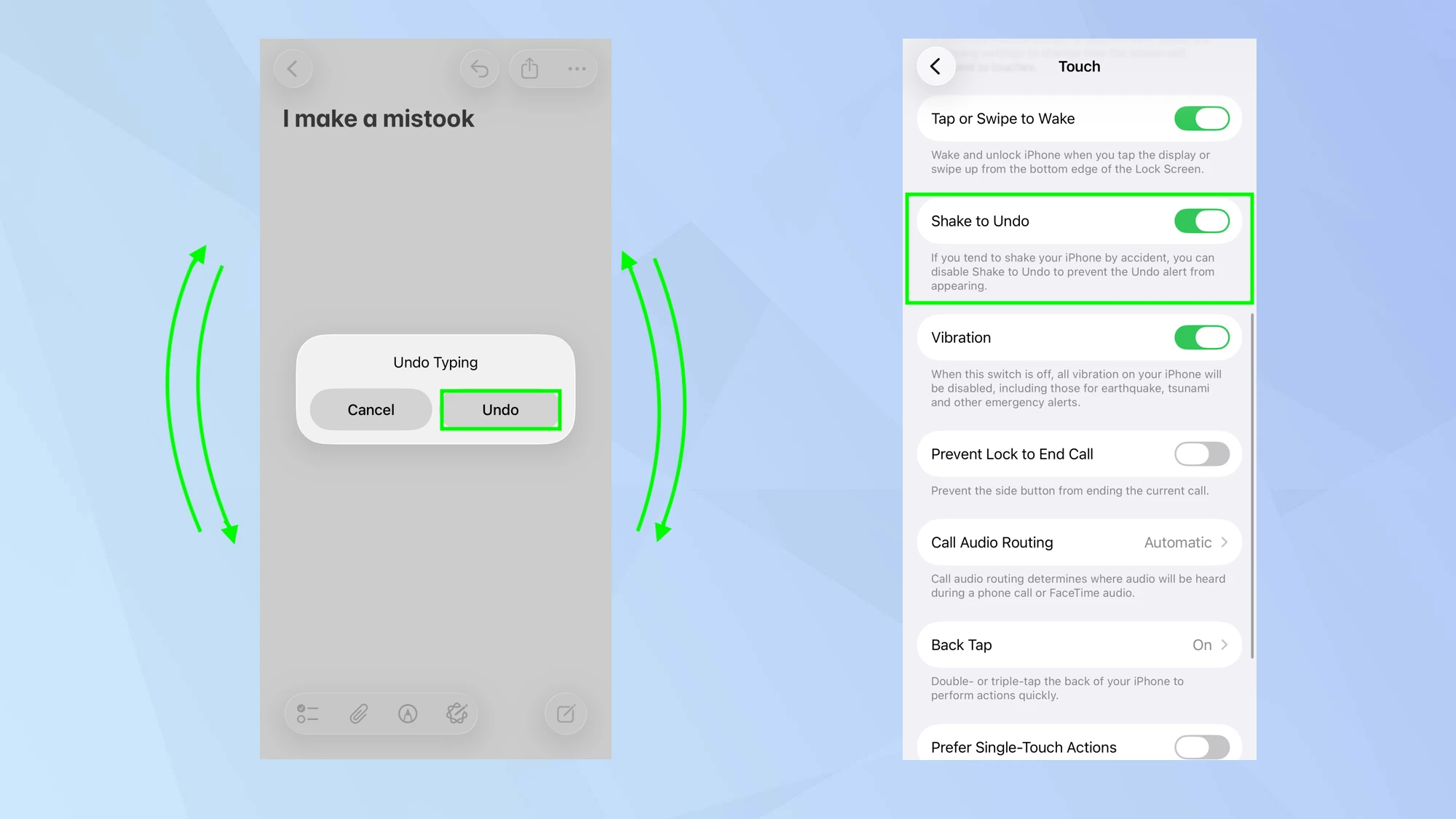

The most distinct method for correcting errors on an iPhone involves physical motion. Apple integrated an accelerometer-based feature that detects when a user shakes the device, triggering a prompt to undo the last action.
This function works across the ecosystem. It reverses typing errors, removes accidentally pasted content, and recovers deleted items. Upon shaking the handset, a dialogue box appears asking the user to confirm the reversal.
Users who find this feature inconsistent or intrusive can manage it via the Settings app. To enable or disable the function, navigate to Settings > Accessibility > Touch and toggle the switch labeled Shake to Undo.
The Three-Finger Swipe
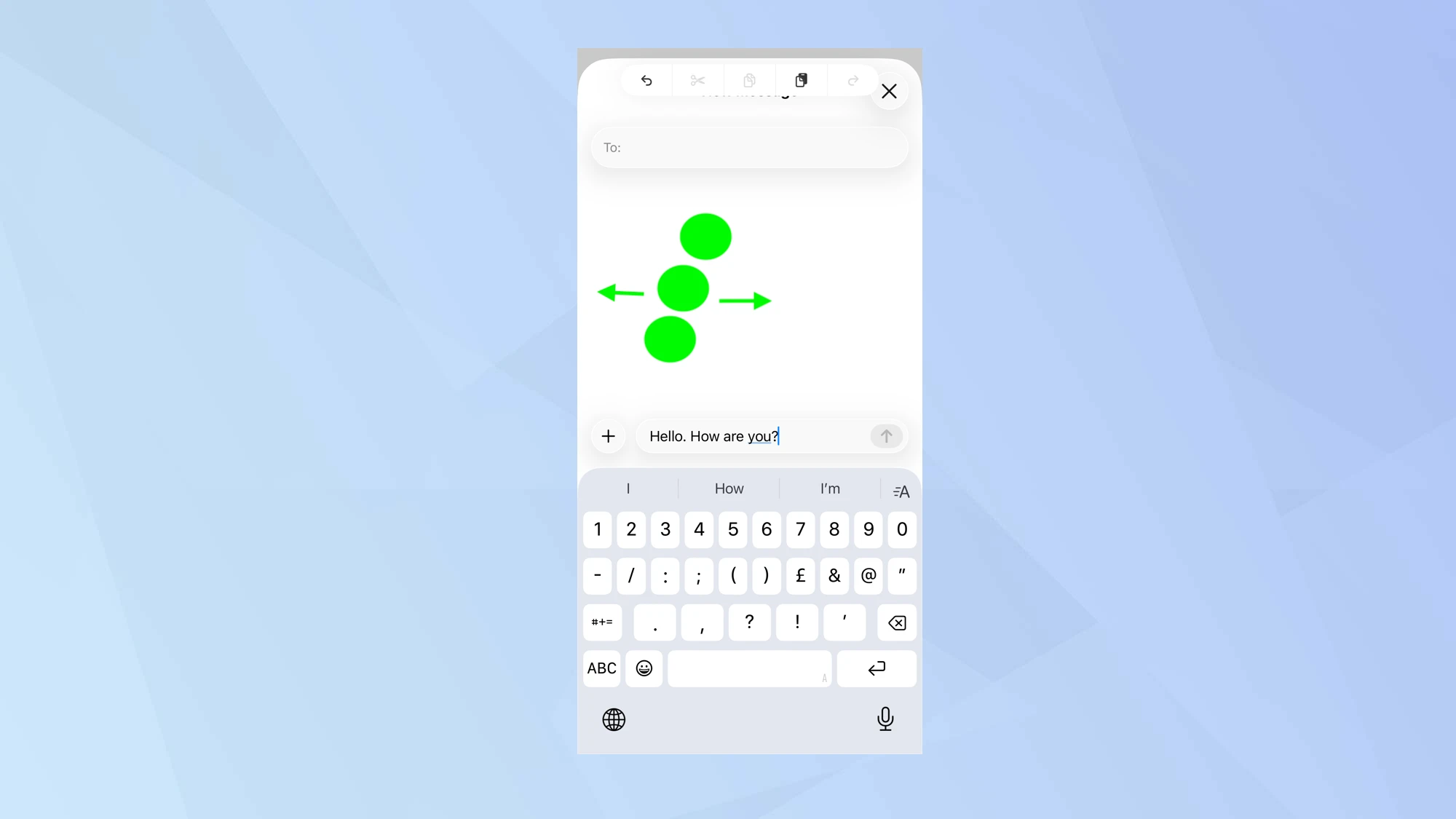
For users seeking a more subtle approach than shaking their device in public, iOS supports specific multi-touch gestures. A three-finger swipe provides the same utility as the shake method but with greater discretion.
To execute this command, place three fingers on the screen simultaneously. Swiping the fingers to the left will immediately undo the previous action. Conversely, swiping three fingers to the right functions as a “redo” command, restoring changes that were previously removed.
The Hidden Contextual Menu
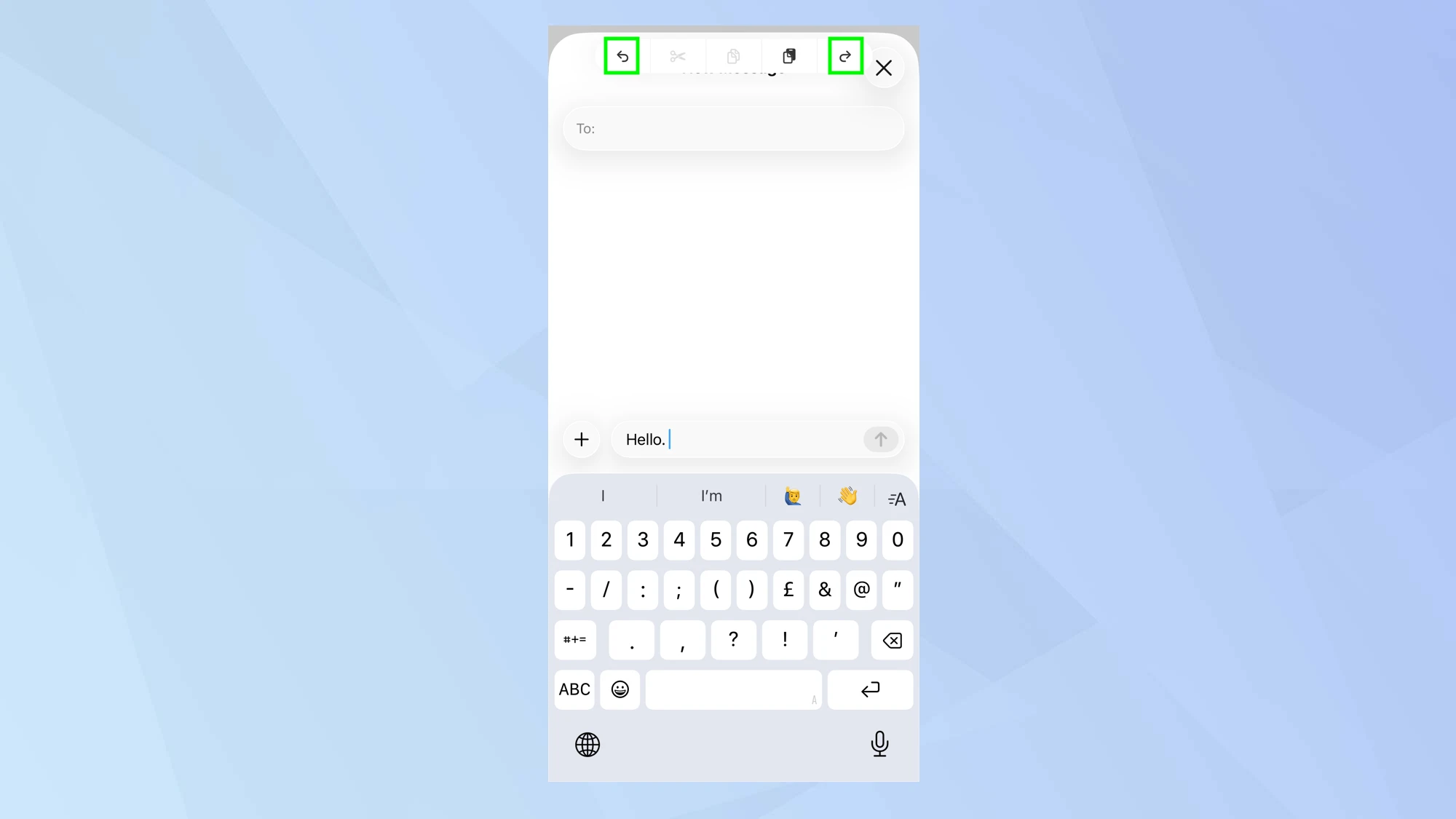
The third method offers a visual interface for managing edits. Rather than swiping or shaking, users can tap the screen once with three fingers.
This action summons a floating toolbar at the top of the display. The menu includes distinct icons for undo, redo, cut, copy, and paste. This method is particularly useful for users who prefer visual confirmation over gesture-based controls. Additionally, many third-party productivity apps include a dedicated “curved arrow” icon within their own interfaces to handle these tasks independently of system gestures.