
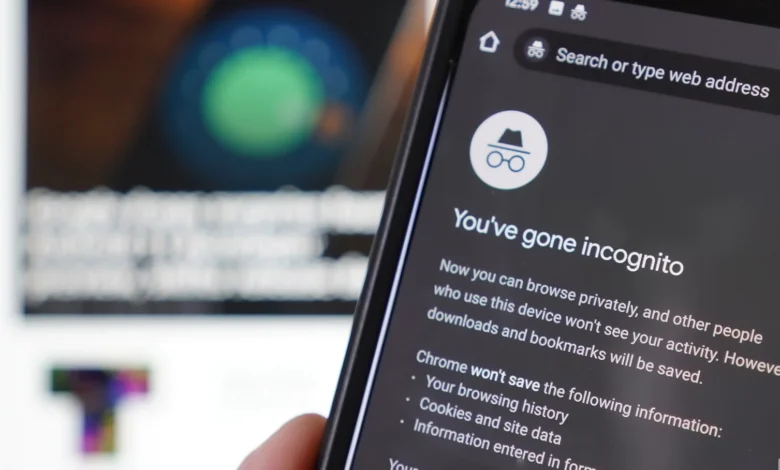
Google Chrome’s Incognito mode serves as a primary tool for private web browsing, ensuring that search history and data are not stored locally. However, a specific feature available on high-end Android devices, such as Google Pixel and Samsung Galaxy phones, significantly boosts this security by locking private tabs behind biometric authentication.
Step-by-Step: Activating the Incognito Lock


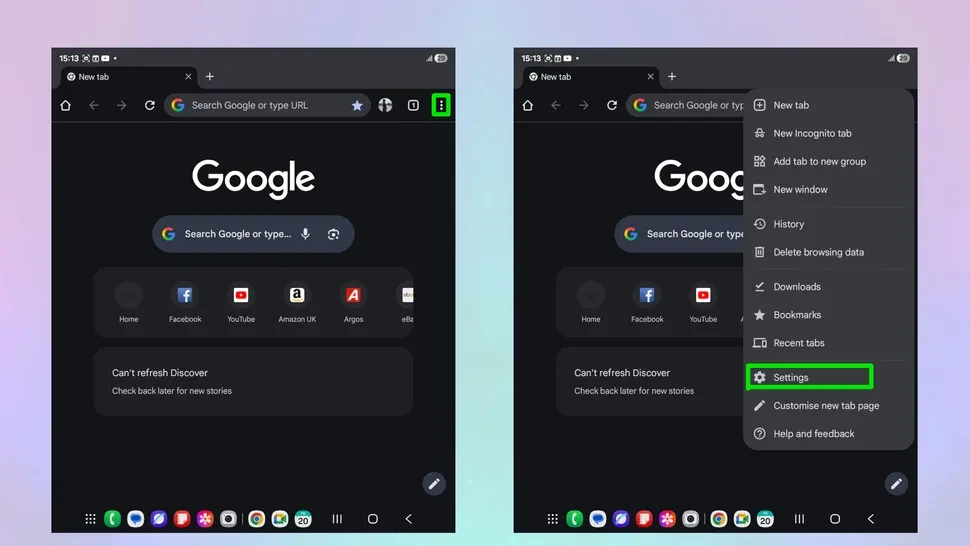
To enable this secondary layer of security, users must navigate through Chrome’s internal menus. First, open the Google Chrome app on your Android device and tap the three-dot menu located in the upper-right corner to select Settings.
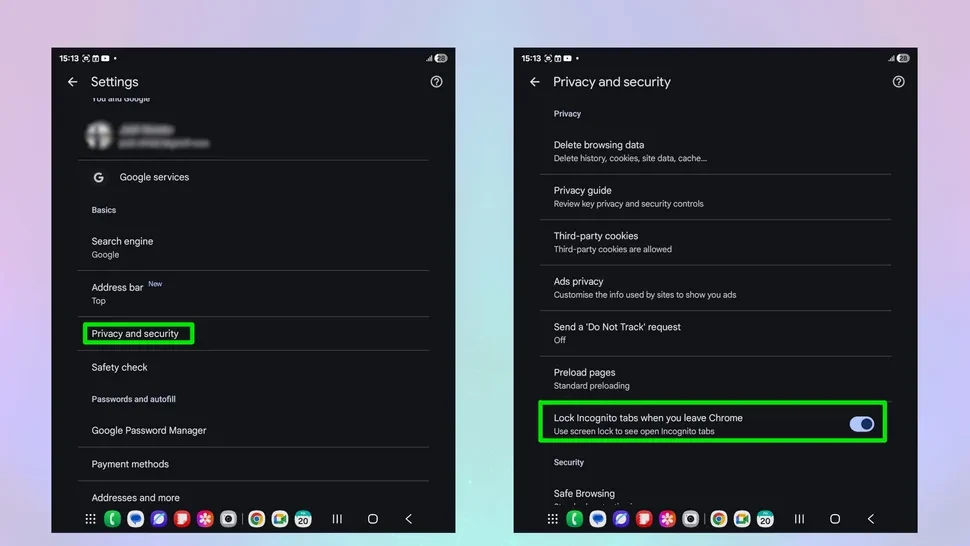
From the main settings list, select Privacy and Security. Within this sub-menu, locate the toggle labeled “Lock Incognito tabs when you leave Chrome.” Upon enabling this, the system will prompt you to verify your identity using your device’s biometric data or PIN. Once confirmed, Chrome will require this authentication every time you attempt to return to an Incognito session after leaving the app.
The Limits of Private Browsing
While this feature provides excellent protection against physical snooping—such as hiding gift shopping or sensitive searches from family members—it is not a total privacy solution. Journalists and security experts emphasize that Incognito mode primarily prevents the storage of cookies and local history.
Data may still remain visible to network administrators, employers, and Internet Service Providers (ISPs). For users requiring a higher tier of anonymity and data encryption, experts suggest utilizing a Virtual Private Network (VPN) in conjunction with Chrome’s built-in security features.