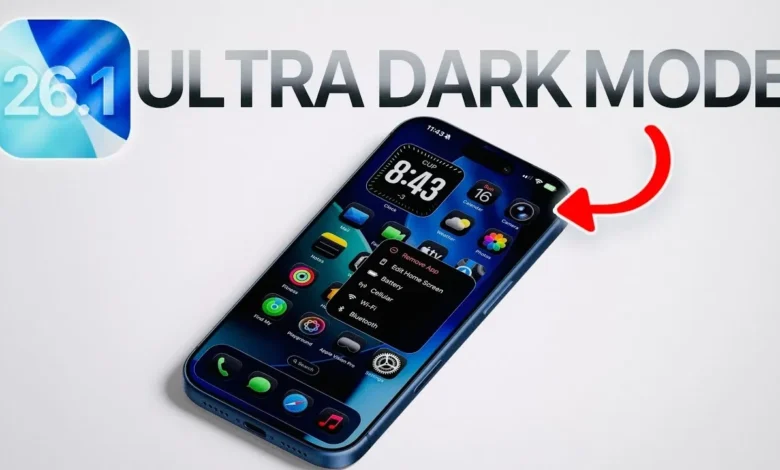
Standard Dark Mode only scratches the surface—here is how to combine three hidden iOS 26 settings to achieve peak contrast and a deep-black interface.
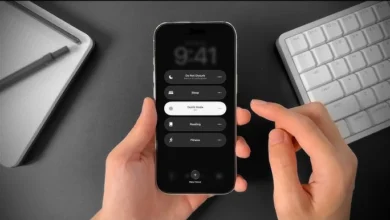
CUPERTINO — While millions of iPhone users rely on Dark Mode for nighttime browsing, most have yet to discover the “Maximum Dark Mode” hidden within the latest iOS 26.1 update. By leveraging the new Liquid Glass design language alongside advanced accessibility toggles, users can transform the standard translucent gray menus into a high-contrast, deep-black interface. This configuration is particularly beneficial for users with visual sensitivities or those seeking to maximize the battery-saving benefits of OLED displays.

Mastering the New Liquid Glass Interface
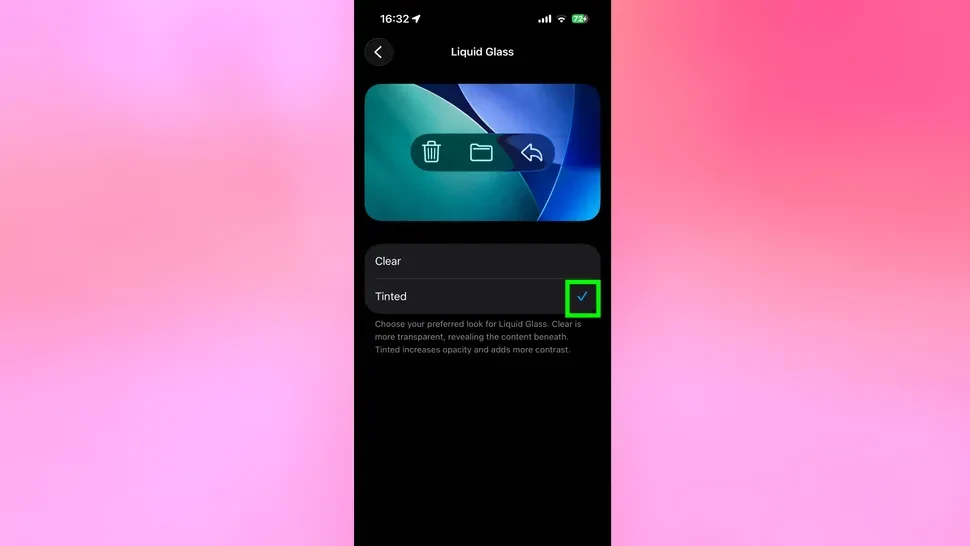
With the introduction of iOS 26, Apple debuted “Liquid Glass,” a design style characterized by translucent layers and refractive effects. While visually modern, this “frosted” look often lacks the deep blacks desired by power users. To fix this, users should navigate to Settings > Display & Brightness and locate the Liquid Glass section.
Switching the setting from “Clear” to “Tinted” immediately increases the opacity of system toolbars, the dock, and notification banners. This adjustment replaces the hazy background blur with a more solid, defined dark tone, making white text significantly sharper against the background.
The ‘Triple-Threat’ Accessibility Stack
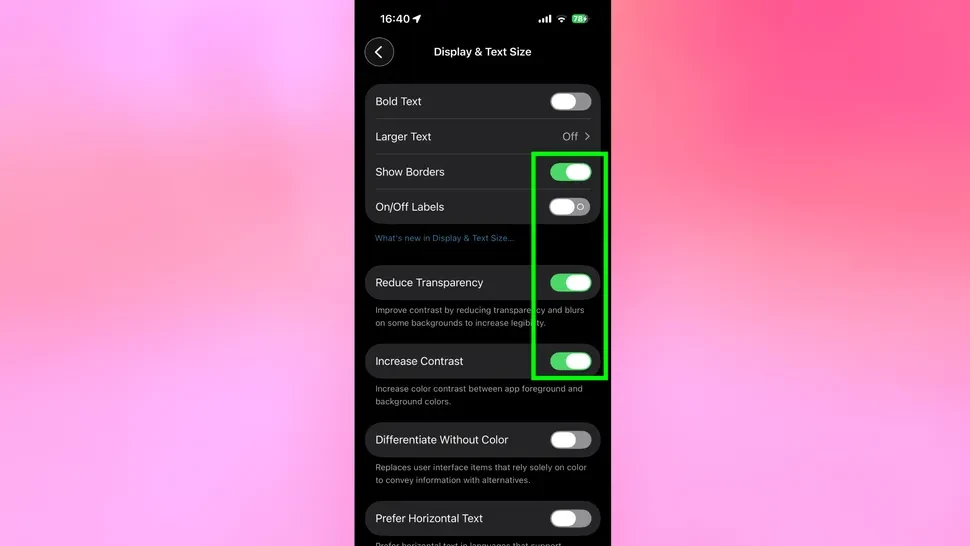
To reach the absolute limit of darkness on an iPhone, industry experts recommend a specific combination of accessibility features found in Settings > Accessibility > Display & Text Size:
- Reduce Transparency: This kills the “glassy” effect entirely, turning translucent elements into solid black or dark gray blocks.
- Increase Contrast: This deepens the color of UI elements and borders, making buttons and toggles stand out with maximum clarity.
- Show Borders: A new addition for iOS 26, this adds subtle outlines to interactive elements, ensuring the interface remains navigable even at the lowest brightness levels.
Customizing Icons for Total Uniformity
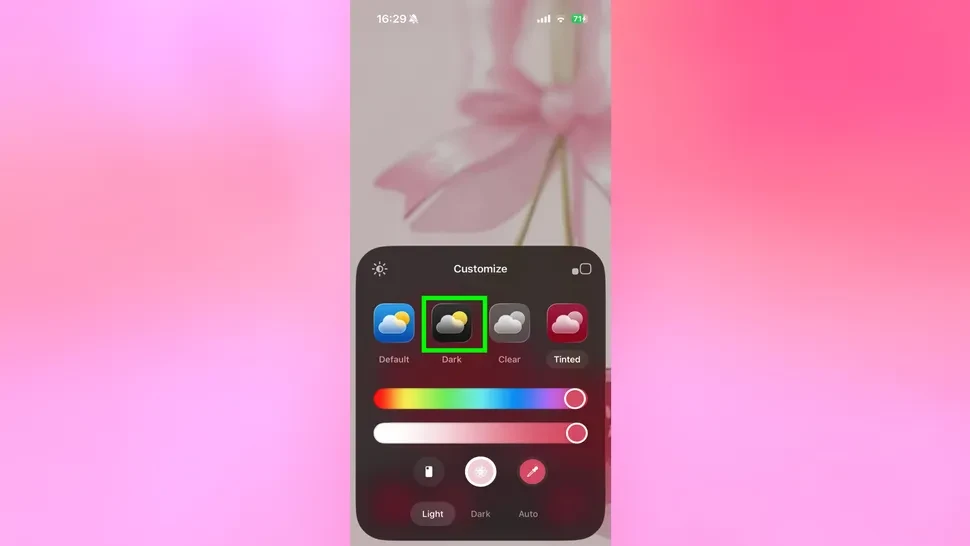
A common complaint with standard Dark Mode is that third-party app icons remain bright and colorful, breaking the dark aesthetic. In iOS 26, users can force a darker look by long-pressing a blank area of the Home Screen and selecting Edit > Customize.
Choosing the “Dark” icon option applies a specialized shader to all app glyphs, muting bright colors and ensuring the entire Home Screen matches the system-wide dark theme. For users on OLED-equipped models (iPhone 12 and newer), this setup minimizes pixel activation, which can marginally extend battery life over long durations of use.