Apple iPhone users can bypass standard typing by utilizing two “hidden” features within the Messages app: Digital Touch sketches and landscape-mode handwritten notes. While these tools have existed within iOS for some time, many users overlook them because they require specific gestures or phone orientations to activate.
Unlocking the Handwriting Canvas

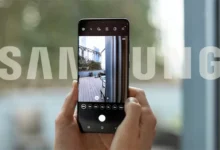
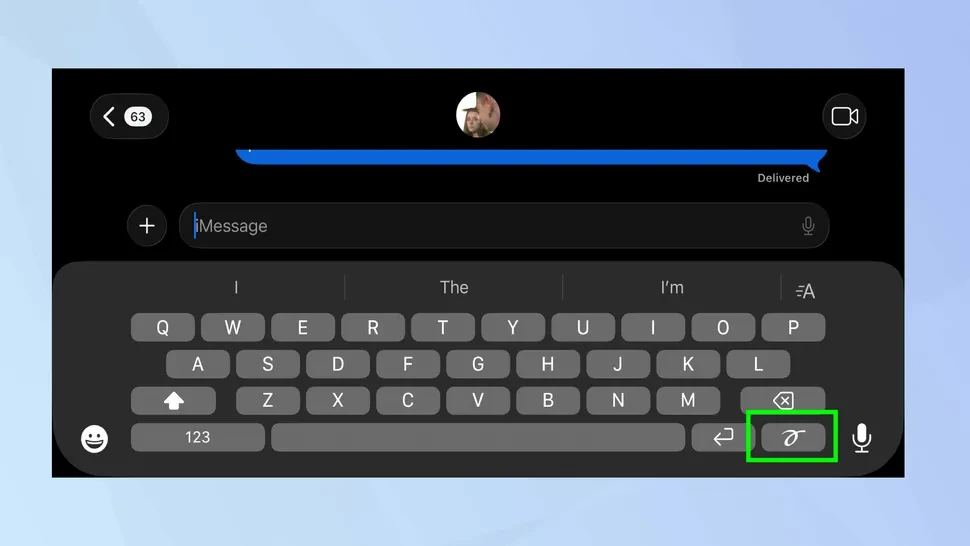
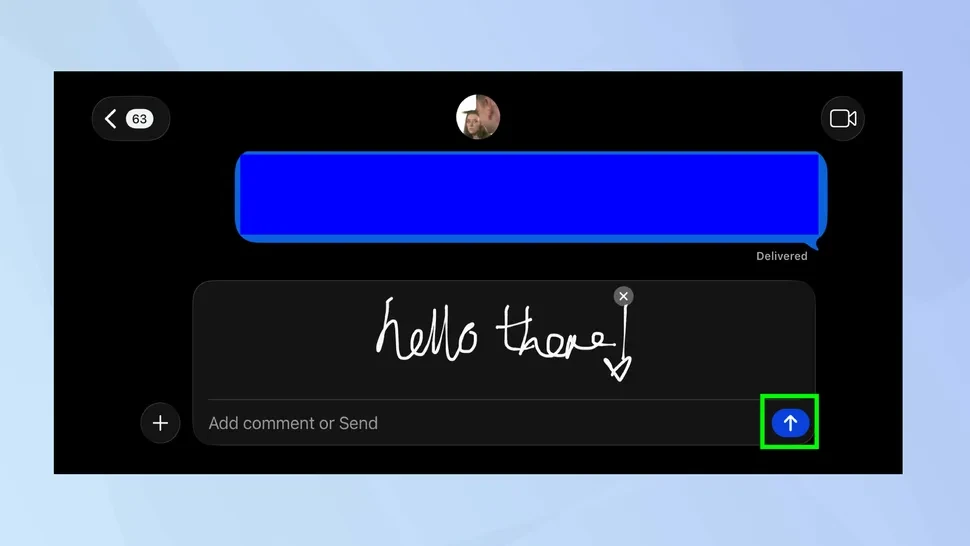
To send a personalized note, users must open a conversation in the Messages app and rotate their device into a horizontal (landscape) position. This action automatically replaces the standard QWERTY keyboard with a blank white canvas. If the canvas fails to appear, tapping the “squiggle” icon located on the bottom right of the keyboard will trigger it manually.
Once the canvas is active, users can draw or write using their finger. The system records the movement of each stroke, allowing the recipient to see the message “write itself” in real-time upon delivery. Apple also provides several pre-written templates, such as “Happy Birthday” and “Thank You,” at the bottom of the screen for quick use.
Sending Animated Digital Touch Sketches
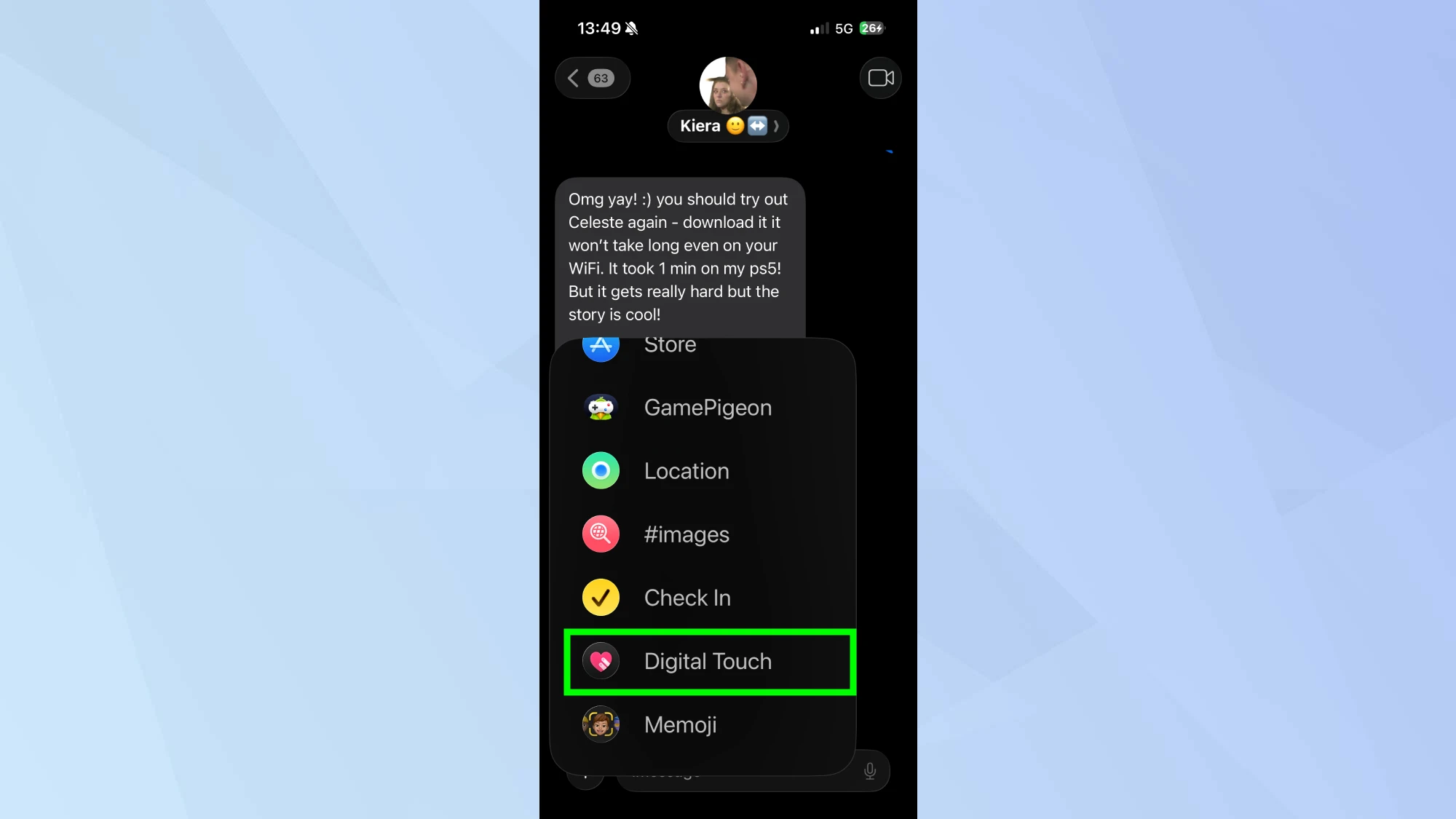
For more interactive communication, the Digital Touch feature offers haptic-based animations. To access this, users should tap the “plus” (+) icon next to the text entry field and select “Digital Touch”—represented by a heart icon with two fingers.
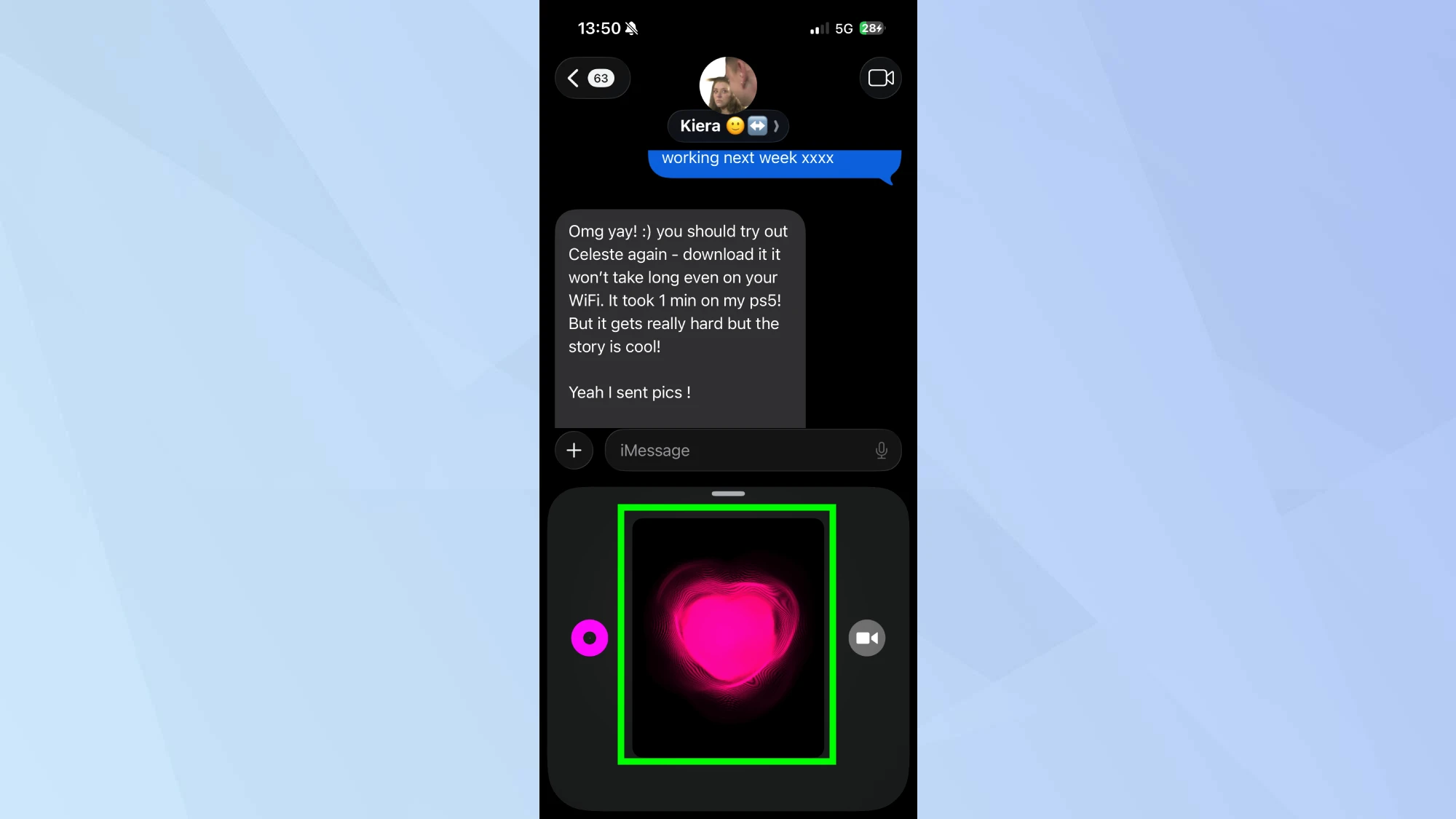
This interface allows for several unique interactions:
- Sketches: Drawing with one finger creates an animated line.
- Taps: Tapping with one finger sends a brief burst of color.
- Heartbeats: Placing two fingers on the screen sends a pulsating heart animation that mirrors the sender’s haptic touch.
Managing Message Expiration
A critical technical detail involves the longevity of these messages. Apple set a default two-minute expiration timer for Digital Touch and handwritten content to save storage space. To keep these messages permanently, users must navigate to Settings, then Messages, scroll to the Expire section under Audio Messages, and select Never.
Compatibility Requirements
These features are built specifically for the iMessage protocol. Consequently, these animations will not render correctly if sent to Android users via SMS.
To ensure the recipient sees the intended animation, both parties must be active on the iMessage network.