An extreme security setting buried within the iPhone’s operating system recently stopped federal investigators from accessing a seized device, highlighting Apple’s robust defense against state-level surveillance. Reports indicate that the FBI’s Computer Analysis Response Team (CART) failed to extract data from a Washington Post reporter’s iPhone specifically because the user had enabled “Lockdown Mode.”
Apple engineered Lockdown Mode to defend against highly sophisticated, “zero-click” mercenary spyware often deployed by government-level actors. While the average user likely does not require this level of protection, the recent failure of FBI forensic tools to breach a protected device underscores the feature’s efficacy.


By activating this mode, the iPhone undergoes a “digital hardening” process. It eliminates common entry points that hackers and forensic software exploit, such as link previews in Messages and complex JavaScript on websites.
How Lockdown Mode Restricts Functionality
When active, the device prioritizes safety over convenience. Connectivity to wired accessories or computers is blocked unless the phone is unlocked, and the device will no longer automatically join unencrypted Wi-Fi networks.
The Messages app undergoes the most significant change, blocking almost all attachment types except for basic images and audio. Similarly, FaceTime calls from unknown contacts are automatically rejected unless the user has initiated contact within the last 30 days.
Step-by-Step Activation Guide
To enable this high-level defense, users must navigate through a few layers of the iOS interface:
- Access Settings: Open the Settings application and select “Privacy & Security.”
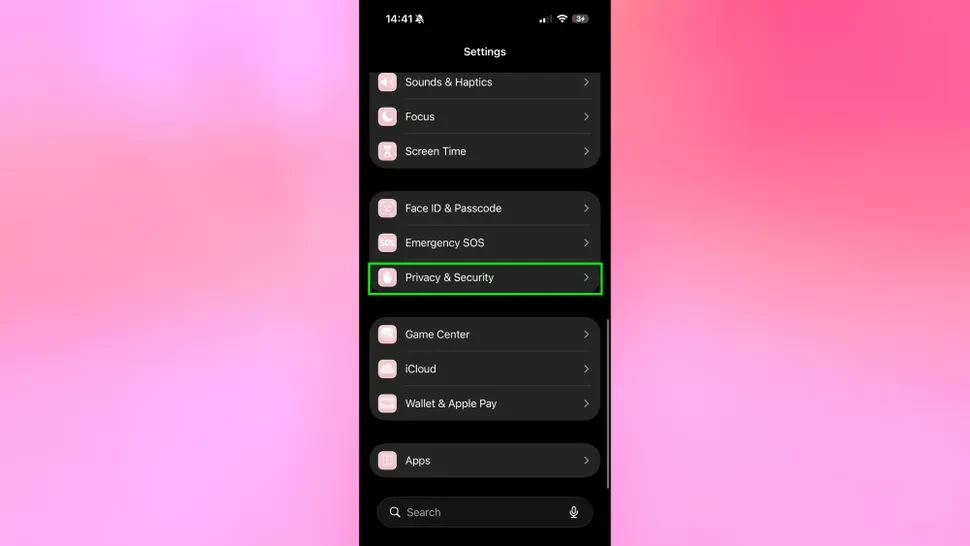
- Locate the Feature: Scroll to the bottom of the menu and tap on “Lockdown Mode.”
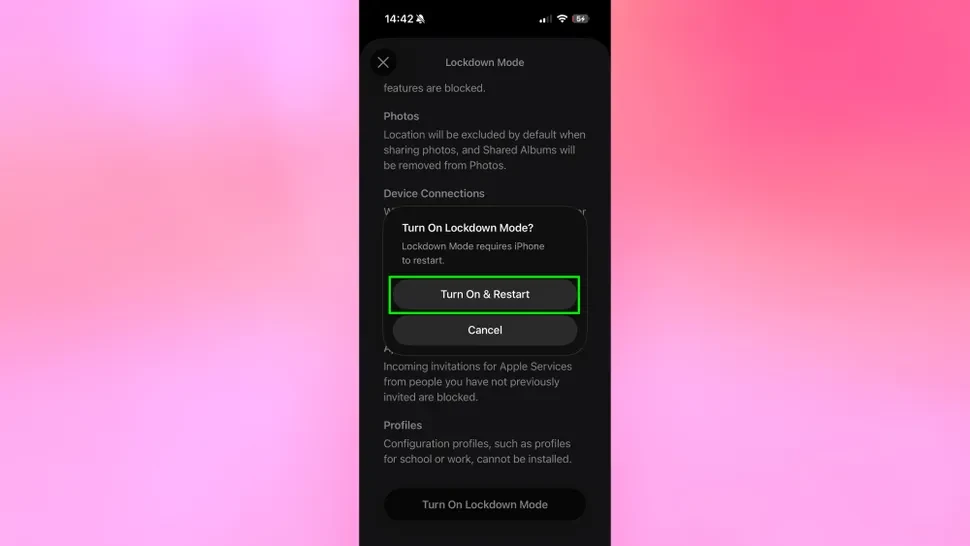
- Confirm and Reboot: Review the listed restrictions, select “Turn On Lockdown Mode,” and confirm by choosing “Turn On & Restart.”
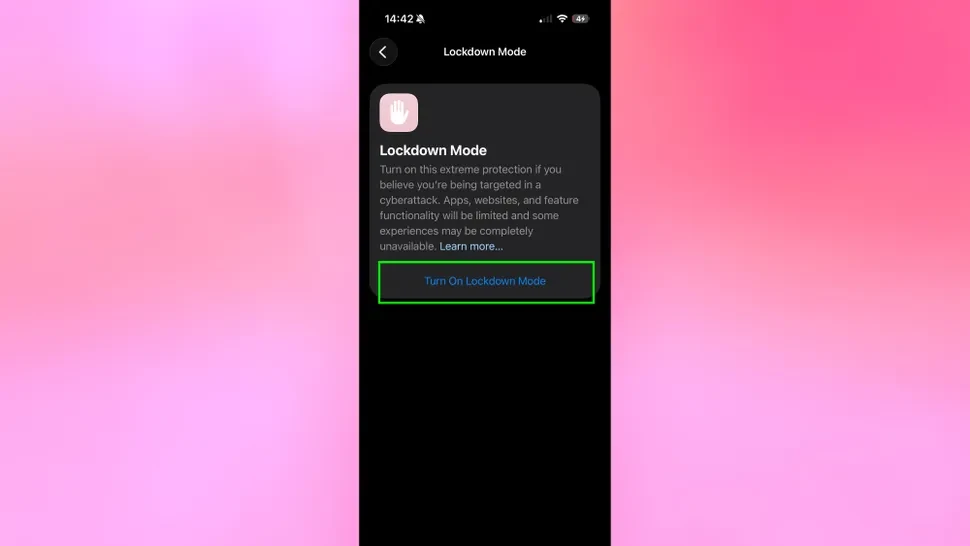
Once the device reboots, the protections are immediate. Users can deactivate the mode at any time through the same menu, though a second restart will be required to restore standard functionality.